How to Set up the SSH Chrome Extension
Juggling SSH clients on different operating systems to connect to an SSH server can be difficult! Instead of finding an SSH client for each operating system, how about using a universal SSH client built right into your browser? You can use the Google Chrome SSH extension that to connect to any SSH server.
Google Chrome is a cross-platform browser, which means the SSH Chrome extension is available on any supported operating system.
In this article, you’ll learn how to download, install, and set up the SSH Chrome extension, and use it to connect to a remote host.
Prerequisites
To follow along with this tutorial, you need a computer with Google Chrome and an SSH server to connect to. This article is using Google Chrome Version 88.0.4324.182 on a Windows 10 Pro 20h3 computer.
Installing the SSH Chrome Extension
Using Google Chrome, a common and easily accessible browser, you can avoid needing a standalone SSH client. Instead, you can give Google Chrome an SSH client right at your fingertips with the SSH Chrome extension!
Since the SSH client in Chrome is an extension you’ll need to install it via the Google Chrome web store. To do that follow these steps.
1. Open your Google Chrome browser.
2. Once Google Chrome is open, click the three vertical dots button on the upper-right corner and click on More tools —> Extensions. Loading the Chrome Extensions Page.
Loading the Chrome Extensions Page.
3. On the Extensions page, click on the hamburger button in the upper-left corner.
Opening the Extensions Fly Out Menu.
4. Next, on the fly-out menu, click on Open Chrome Web Store is at the bottom. Doing so opens the Chrome Web Store in a new tab.
Clicking the Open Chrome Web Store link.
5. Look for the search box on the Chrome Web Store page’s upper-left side and type the search term secure shell.
6. Next, click Secure Shell under the list of results.
Searching for the Secure Shell extension.
7. Once you’re on the Secure Shell extension page, click Add to Chrome.
Clicking the Add to Chrome button.
8. At the confirmation prompt, click Add extension to add the Secure Shell extension to Chrome.
Clicking on the Add extension button.
9. After installing the extension, return to the Extensions page and confirm that Secure Shell is now on the extensions list.
Confirming the Secure Shell extension installation.
10. To keep the Secure Shell extension always visible you need to pin the extension to the toolbar. To do so, click on the Extensions button that looks like a puzzle piece.
11. When you see the list of extensions, click the pin next to Secure Shell.
Pinning the Secure Shell extension
If you’ve turned on sync in Google Chrome, the SSH Chrome extension will synchronize to your other computers where you’ve installed Google Chrome.


Creating and Opening a New Connection
Now that you’ve installed the Secure Shell extension get ready to use it to connect to your SSH server. The SSH Chrome extension uses connections to save your common SSH servers. Follow these steps to create and open a connection.
1. On the Google Chrome toolbar, click the Secure Shell extension icon.
2. When the dropdown menu appears, click Connection Dialog.
Opening the Secure Shell Connection Dialog.
3. On the Connection Details window that opens, enter the following details.
- In the description box, enter a name to assign to the new connection. In this example, the new connection name is ssh-test-1.
- Next, enter the username, hostname, and optionally the SSH server’s port number to connect to. If you do not enter a port number, the connection will use port
22by default. - When you’ve filled in the required information, press Enter or click the [ENTER] Connect button. Doing so saves the new connection for later use and connects to the SSH server.
 Doing so saves the new connection for later use and connects to the SSH server.
 Creating and Connecting to a New SSH Connection.
4. Since you’re connecting to the server for the first time, you’ll see a message displaying the remote host’s fingerprint asking you to confirm whether to continue with the connection. To continue with the SSH connection, type yes in the box and press Enter.
A fingerprint is the remote host’s unique identifier that you can use to verify that you are connecting to the correct server.
Confirming the remote host fingerprint.
5. Next, at the password prompt, enter your password and press Enter. The SSH extension will then log you into the remote host.
Entering your password.
At this point, you’ve successfully connected to the SSH server, and you should see an output similar to the screenshot below.
Logging in to the remote SSH server.
Connecting to a Previously Saved Connection
You won’t want to recreate a connection every time, but thankfully the extension saves your connection for reuse. After saving the connection, the SSH connection becomes available in the SSH extension’s dropdown menu.
To connect to a saved SSH connection with the drop-down extension menu, follow the steps below.
1. Click the Secure Shell extension on the Google Chrome toolbar.
2. Next, click the saved connection you want to connect, which in this example is ssh-test-1.
Connecting to a Saved Connection from the toolbar.
3. At the next prompt, type in your password and press Enter.
Connecting via the Connection Dialog
Although the way demonstrated above is quick, there is one other way to start a saved connection from the Connection Dialog. The only difference when using this approach is you can make changes to a saved connection, if needed, before connecting to the SSH server.
To do so, follow these steps.
1. On the Google Chrome toolbar, click the Secure Shell extension icon —> Connection Dialog.
2. Once you’ve opened the Connection Dialog page, click to select the connection name, which is ssh-test-1 in this example.
3. Press Enter or click the [Enter] Connect button to begin the SSH connection process.
Connecting to a saved connection from the Connection Dialog.
Connecting to a Remote Host using the Search Bar
Perhaps one of the handy features of the SSH extension is the ability to use it from Chrome’s Omnibox. The Omnibox is the text box at the top-middle area in Chrome where you type addresses or search terms.
This connection method allows you to establish a remote SSH connection without saving that connection. To establish an SSH connection using the Omnibox, follow these steps:
1. Open a new Google Chrome tab.
2. In the Omnibox, type ssh and press Tab. As you can see in the screenshot below, the Omnibox now shows a Secure Shell prompt.
Accessing the Secure Shell prompt.
3. Type [email protected] into the Omnibox, where username is your username and hostname is the IP address or Fully Qualified Domain Name (FQDN) of your SSH server. Press Enter to connect.
Starting an SSH connection from the Omnibox.
Alternatively, type in the connection name, then click to select a previously saved connection.
Selecting a previously saved connection.
4. At the password prompt, type in your password and press Enter.
Logging in to the SSH server.
Adding Key-Based Authentication
So far, throughout this tutorial, you’ve been using a user account and password to connect to an SSH server. But, you don’t have to! Instead, you can use a shared key to authenticate your connection to an SSH server, the key-based authentication method uses a public and private key-pair instead of a password.
A key-pair consists of a private key on your client and a public key on the SSH server. This configuration ensures that only the private key that matches the public key on the server can authenticate.
This tutorial does not cover the process of generating a key-pair and configuring the public key on the SSH server.
To enable key-based authentication for a connection, import the private key into the connection in Secure Shell. This tutorial assumes that you’ve already deployed your public key to the SSH server.
1. On the Google Chrome toolbar, click the Secure Shell extension icon —> Connection Dialog.
2. Once you are in the Secure Shell window, click to select the connection name you want to enable key-based authentication. This example uses ssh-test-1.
3. Next, click the Import link next to the Identity dropdown box.
Clicking the Import link.
4. When the Open dialog box shows up, browse for the private key file and click Open.
Typically, a private key file does not have a filename extension by default, like id_rsa, for example.
Conversely, the public key has the .pub filename extension by default, such as id_rsa.pub.
 But depending on how you generate a key-pair, a private key may have a different name and have an extension.
 Browsing and selecting the private key file.
5. After importing the private key, the Identity dropdown box automatically selects the private key name. In this example, the private key name is id_rsa, and to connect, press Enter or click the [ENTER] Connect button.
Connecting to the SSH server using key-based authentication.
6. If your private key has a passphrase, enter the passphrase at the next prompt, as shown below. Otherwise, the login process will continue without asking for input.
Enter the Keyphrase
Conclusion
In this article, you’ve learned about the SSH Chrome extension called Secure Shell. You’ve learned how to install the Secure Shell extension, create new connections, and connect to new and saved connections. You’ve also learned how to add key-based authentication to your SSH connections.
For all intents and purposes, the Secure Shell extension is a viable alternative SSH client. What do you think of the Secure Shell extension? Is it good enough to use in your daily tasks?
How to Use the Chrome Browser Secure Shell App to SSH into Remote Devices « Null Byte :: WonderHowTo
- By Hoid
-
-
Many guides on Null Byte require using the Secure Shell (SSH) to connect to a remote server. Unfortunately for beginners, learning to use SSH can become a confusing mix of third-party programs and native OS support. For Chrome OS users, using SSH is even more difficult. We’ll fix this by using the Chrome Secure Shell to establish an SSH connection from any device that can run a Chrome browser.
The Secure Shell Chrome extension and app provide PuTTy-like functionality for those that are familiar with the third-party Windows software. The extension and app are xterm-compatible terminal emulators and standalone SSH clients for Chrome. They work by combining the SSH command ported to the Google Native Client with the hterm terminal emulator, which allows the app to provide a Secure Shell client within the browser without relying on external proxies.
- Don’t Miss: How to Enable the New Native SSH Client on Windows 10
In just a few minutes, you’ll be able to establish an SSH connection from your Chrome browser. For obvious reasons, you’re going to need to install the Chrome browser, so make sure to download Chrome if you don’t already have it installed.
Step 1: Install the Chrome Secure Shell
To begin, you need to download the Secure Shell extension or app from the Chrome Web Store, depending on what device you’re using. If you’re using a Chrome OS device, you’ll want the app. All other devices should use the extension. After opening one of the links below in your Chrome browser, click on the “Add To Chrome” button in the top right-hand corner of the pop-up window.
- Chrome Web Store Link: Secure Shell Extension
- Chrome Web Store Link: Secure Shell App
Following that, a dialog window will appear asking you to confirm that you want to add the extension or app. Click on “Add extension” or “Add app” to install. If you chose the extension, it’s available to use immediately. For the app version, it shouldn’t take more than a few seconds to finish installing.
Step 2: Open the Chrome Secure Shell
You can access the Secure Shell Extension in Chrome by clicking the extension’s icon in the toolbar, then “Connection Dialog,” or by typing ssh in the address bar and hitting the Tab or Spacebar key followed by Enter. The icon will open in a new window while the address bar shortcut will be in the tab you’re currently in.
For the Secure Shell App, you can click on “Launch App” from its Web Store page. In addition, you can use chrome://apps in the address bar or click on “Apps” in the far-left of Chrome in the bookmarks bar, then select “Secure Shell.” It’s also possible to open it in a Chrome tab using the ssh trick in the address bar like with the extension.
Step 3: Save a New Connection
Now that we have the Secure Shell extension or app open and running, it’s simple to establish an SSH connection. In the SSH screen, there will be a pane with several settings available. Look at the first setting, and ensure that “New Connection” is selected by clicking on it so that it looks like the image below. If you’ve never used Secure Shell before, it will be selected automatically.
Next, type a name for your new connection in the top text box which says “username@hostname or free form text.” The name can be anything, so try to pick the most accurate name that will help you remember which connection goes to which device. For example, you might use “retroPie” or “Basement media server,” as even a somewhat specific name like “Raspberry Pi” can become confusing when you have more than one Pi.
Alternatively, you can simply begin typing the connection into the name bar as I did, and it will automatically fill in the proper boxes below. Otherwise, you will need to fill each box in manually.
- In the “username” box, you should put the username for the server you’re connecting to. Some common default usernames are root and pi.
- The hostname should be the web domain or IP address of the server you wish to connect to. In my case, I’m connecting to my Android phone, which is on my local Wi-Fi network. Because this is the case, I’ll be using use my Android phone’s local IP address of 192.168.0.13.
- After that, a port needs to be selected. The default port number for SSH connections is 22, but this can be easily changed, so your server may use a different port. For instance, I’ll be using port 2222, which is what the SSHDroid app uses on my Android phone.

Once all of the required information has been entered, click the “Connect” button at the bottom of the pane or press Enter. Skip down to Step 6 below to see what to do next, or check out Step 5 to see how you would access your new saved connection later.
Step 4: Start Your Saved Connection
After you first make the connection, you’ll only need to select the name of the connection in the box to connect again, not “New Connection,” as the app will remember all of the login details.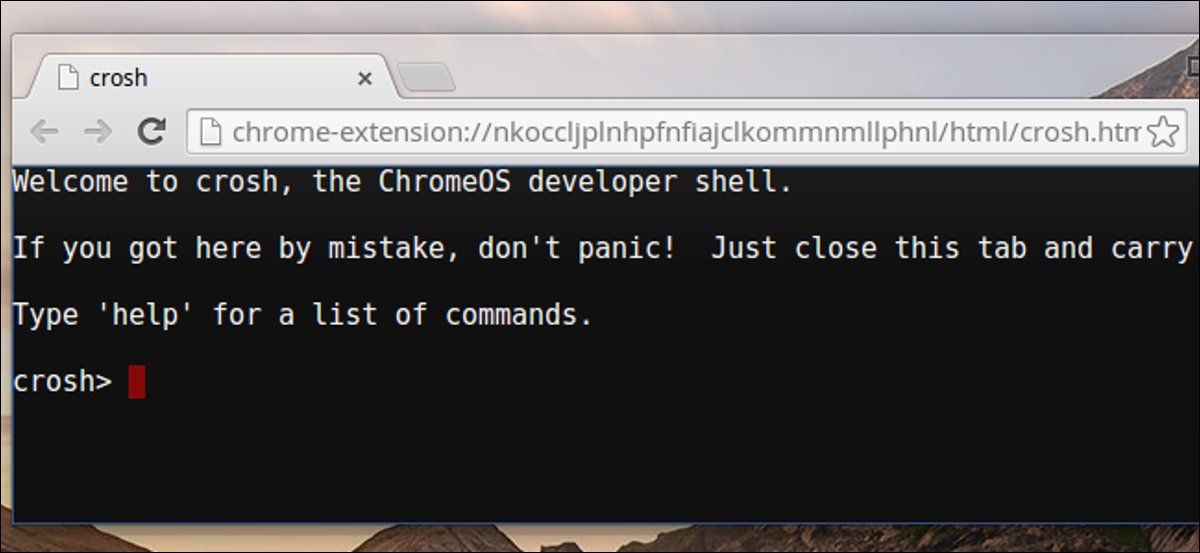
Perhaps the most exciting feature to use with the Secure Shell is it allows you to establish an SSH connection in a matter of seconds by simply typing in the search bar at the top of the browser. To do this, you can use the following format, which is the same as you might use in a macOS or Linux terminal window. Don’t foget to hit Tap or Spacebar before entering the connection info.
ssh username@host:port
- Don’t Miss: Use SSH Local Port Forwarding to Pivot into Restricted Networks
Even faster, if you have the extension installed, you can click on the extension’s icon in the toolbar, then select your connection’s name. A new window will appear with the connection being made.
Step 5: Log in to Your Remote Server
Upon a successful connection, you will see the always-familiar terminal window appear in the window or tab. The first time you connect to a server, you will be provided with a key fingerprint that you need to accept. This fingerprint is used for easy identification and verification that the server you are connecting to is legitimate.
Connecting to [email protected]...
The authenticity of host '[192.168.0.13]:2222 ([192.168.0.13]:2222)' can't be established.
RSA key fingerprint is SHA256:fvQg9YFJSoQ5PyyaKDx4tAUOHPkSTxs0TRWiJnIEIMM.
Are you sure you want to continue connecting (yes/no)?
The fingerprint should be the same every time you log in to the same system. If you ever get a message that the fingerprint has changed, it’s a warning sign that someone is interfering with the connection. After accepting the fingerprint, you’ll be prompted to enter your credentials, just like any other SSH connection.
Connecting to [email protected]... The authenticity of host '[192.168.0.13]:2222 ([192.168.0.13]:2222)' can't be established. RSA key fingerprint is SHA256:fvQg9YFJSoQ5PyyaKDx4tAUOHPkSTxs0TRWiJnIEIMM. Are you sure you want to continue connecting (yes/no)? yes Warning: Permanently added '[192.
 168.113.113]:2222' (RSA) to the list of known hosts.
SSHDroid
Use 'root' as username
Default password is 'admin'
168.113.113]:2222' (RSA) to the list of known hosts.
SSHDroid
Use 'root' as username
Default password is 'admin'
That’s it! You’ve successfully used your Chrome browser to establish a SSH connection to your remote device.
Step 6: Enable Key-Based Authentication
Passwords aren’t the only way to authenticate an SSH connection. The other most common method is called public key authentication. This method uses a cryptographic key pair, one public and one private, in place of a password. The public key is configured on the server to authorize server access to those users with a copy of the private key.
Using key-based authentication adds an extra layer of convenience when a human is connecting by eliminating the requirement to input a password. The key exchange is considered to be the password instead. Key authentication is also the de-facto way to set up an automated SSH connection, such as automated file transfers.
- Don’t Miss: How to Create a Native SSH Server on Your Windows 10 System
Secure Shell includes the ability to employ key-based authentication, which it calls “identity files.” To import identity files from the connection screen, click on “Import” under the connection info, and select your public and private keys.
The private key should not have a file extension, while the public key should have the PUB extension. For example, you might have “id_rsa” as your private key and “id_rsa.pub” as your public key.
If the key pair is stored in a PEM file, you must split it into two files before importing. This can be by opening the PEM file in a text editor and copy and pasting each key into a new document. Without doing this, the app will not accept it. The PEM file will look something like this:
-----BEGIN RSA PRIVATE KEY-----
[[KEY HERE]]
-----END RSA PRIVATE KEY-----
-----BEGIN PUBLIC KEY-----
[[KEY HERE]]
-----END PUBLIC KEY-----
Save the new documents under the original filename. For example, “id_rsa.pub” would be the file name for the public key.
If you ever wish to delete any of these keys because they are no longer valid, navigate to the connection screen, and select the identity associated with that key from the menu. Now, press the Delete key. This will remove both the private and public key files from the HTML5 filesystem, as well as the saved connection.
SSH Anywhere That Chrome Can Run
The Secure Shell Chrome app is a wonderful little tool to make the lives of developers, programmers, and hackers easier when connecting to remote devices. The ability to use SSH directly from your Chrome browser is not a groundbreaking feat, but it adds cross-platform convenience to using SSH that cannot be understated. For Chrome OS users, in particular, the Secure Shell app is the best way for you to be able to establish an SSH connection.
Thanks for reading! If you have any questions, you can ask me here in the comments or on Twitter @The_Hoid.
Don’t Miss: Punchabunch Just Made SSH Local Forwarding Stupid Easy
- Follow Null Byte on Twitter, Flipboard, and YouTube
- Sign up for Null Byte’s weekly newsletter
- Follow WonderHowTo on Facebook, Twitter, Pinterest, and Flipboard
Want to start making money as a white hat hacker? Jump-start your hacking career with our 2020 Premium Ethical Hacking Certification Training Bundle from the new Null Byte Shop and get over 60 hours of training from cybersecurity professionals.
Buy Now (90% off) >
Other worthwhile deals to check out:
- 97% off The Ultimate 2021 White Hat Hacker Certification Bundle
- 99% off The 2021 All-in-One Data Scientist Mega Bundle
- 98% off The 2021 Premium Learn To Code Certification Bundle
- 62% off MindMaster Mind Mapping Software: Perpetual License
Cover photo and screenshots by Hoid/Null Byte
2 Comments
- Hot
- Latest
Stripping pliers chrome-plated 165 mm, KNIPEX (id 104623248)
Characteristics and description
• for quick stripping of the sheath and insulation from the most commonly used round wires and wires for damp rooms (eg NYM)
• easy access, before everything, for flush sockets, thanks to the slim head shape and optimal blade inclination for stripping the cable
• easy and clean stripping thanks to the round blade with depth gauge
• universal use: precision holes for stripping wires 1. 5 and 2.5 sq. mm
• with side cutters for cutting wires, wires, small screws and nails
• all blades additionally HF-hardened to a hardness of approx. 61 HRC: for high wear resistance
• weight 30% less than comparable pliers
• vanadium steel, forged, oil-hardened
| Art. No. | Manufacturer code | 0016 | Note | Website price with VAT, rub/piece | |
|---|---|---|---|---|---|
| two-component boot, tested according to VDE | 6 106.80 |
Was online: Today
Seller KlimaTechnika
Rating not formed
2 years on Satu.kz
Less than 100 orders
- Seller catalog
- Reviews
2
- Website of the seller 2 Seller KlimaTechnika
Delivery
Payment and guarantees
Popular manufacturers in the category Sausages
-
TiTBiT
-
Knipex
-
Carboma
-
Torgmash
-
Haupa
900 53
-
Lemark
-
Chicco
-
Akfix
-
IEK
-
Biostar
Exegate
-
Baur
-
Pragma
-
Belkozin Luga plant
-
ROSNET 9 0003
We buy
-
Climate equipment
-
Water convectors and accessories for them
-
Household appliances for the home
-
Water heaters, boilers, water heaters
-
Household pumps for water supply, sanitation
-
Household pumps
-
Air conditioners
-
Heating boilers
-
Electrical domestic and commercial convectors
-
Barbecue accessories
-
Solid fuel boilers
-
Camping tools
-
Expansion tanks
-
Automotive electronic accessories
-
Water heaters
-
Heat accumulators
900 53
-
Auto-refrigerators
-
Accessories for stoves and fireplaces
-
Spare parts and accessories for household appliances
-
Grill and tandoor sets and accessories
TOP tags
-
Grilled sausages
-
Edible salt
-
Hay tying twine
-
Sausage casing
-
Male bouquet
-
Nitrite salt
-
Nitrite salt
How much do you like
comfortable on satu?ABS/ABS+PC Truck Parts Plastic Coating Excellence – Truck Parts Electroplating Services
Cherng Yi Hsing High Quality Electroplating Services
Along with providing electroplating services for automotive companies, Cherng Yi Hsing also takes advantage of its large chemical plastic coating tanks by offering ABS plastic coating for truck parts.
Coating truck parts requires a team of engineers to provide precise solutions for coating, precise finish and test gauge to achieve the best results. laboratory, strict electroplating processing system, and they only buy high quality plaster mortar. electrochemical coating of truck parts on plastic structure
Trucks in assembled with T609
Industrial coating of bumpers for cars and trucks | Electroplating Services -Cherng Yi Hsing
Each electroplating part of the truck is tested and certified.
year brand and type item no. 14-15 CHROME OUTER SHELL + GLOSSY BLACK MESH CHEVROLET SILVERADO 1500 FULL REPLACEMENT PBG-8506 14-15 CHROME OUTER SHELL + BLANK CHEVROLET SILVERADO 1500 FULL REPLACEMENT PBG-8501 09-14 CHROME OUTER SHELL+GOSSI BLACK MESH FORD F150 FULL REPLACEMENT PBG-85 22 09-14 CHROME OUTER SHELL+MESH FORD F150 COMPLETE REPLACEMENT PBG-8516 09-14 CHROME OUTER SHELL + BLANK FORD F150 COMPLETE REPLACEMENT PBG-8517 10-15 CHROME EXTERIOR TRIM+MESH DODGE RAM 2500/3500 FULL REPLACEMENT 0014 10-15 CHROME OUTER SHELL + BLANK DODGE RAM 2500/3500 FULL REPLACEMENT PBG-8509 10-15 GLOSSY BLACK OUTER SHELL + MESH DODGE RAM 2500/3500 FULL REPLACEMENT 900 29 PBG-8510 10-15 CHROME OUTER SHELL + GLOSSY BLACK MEASH DODGE RAM 2500/3500 FULL REPLACEMENT PBG-8514 07-15 CHROME JEEP WRANGLER 900 28 ПБГ-8058
Send request
Navigation
- GM, Chrysler, Ford Auto Part Plastic Plating Services- Cherng Yi Hsing
- Truck Parts ABS / ABS+PC Plastic Plating
- Home Appliance Parts Plastic Plating
- Electroplating Services Flow Chart – Cherng Yi Hsing
- Auto Parts Plastic Chrome Plating | Plastic Chrome Plating Supplies
- About Cherng Yi Hsing – Company Introduction
-
Cherng Yi Hsing Plastic Plating Factory CO.
-
 Coating truck parts requires a team of engineers to provide precise solutions for coating, precise finish and test gauge to achieve the best results. laboratory, strict electroplating processing system, and they only buy high quality plaster mortar.